5 min readUpdated 15 October 2026
FramioCam vs Awesome Screenshot: Capture, Edit, and Share
Compare Awesome Screenshot and FramioCam on capture, sharing, screenshot styling, video editing, local processing and one-time pricing.
- comparisons
- screenshot-tools
- awesome-screenshot-alternative
KEY TAKEAWAYS
- Awesome Screenshot captures and uploads for easy sharing; FramioCam keeps capture, styling and video editing local, with optional sync sent straight to your Google Drive.
- Awesome Screenshot gates its useful features behind a per-seat subscription; FramioCam's editor is the same in Free, Pro, and Teams, and paid for once.
- Awesome Screenshot is the better tool when one-click pushes into Slack, Asana or Trello — and cloud history across devices — are the daily workflow.
Awesome Screenshot is one of the most-installed screen capture extensions on the Chrome Web Store, and it’s easy to see why: it’s free to start, it’s simple, and it plugs straight into Slack, Asana and Trello. FramioCam solves a narrower, deeper version of the same problem. Here’s where they actually differ.
The short version
| Awesome Screenshot | FramioCam | |
|---|---|---|
| Pricing model | Subscription, per seat | One-time payment |
| Free tier | Yes, generous — capture and basic sharing | 50 screenshots with no account; video export needs a free account |
| Paid price | From ~$6/user/month | One-time Pro and Teams plans |
| Where captures live | Uploaded to Awesome Screenshot’s cloud for sharing and history | Stay on your machine |
| Styling | Basic annotation and cropping | Full studio: 20+ backdrops, window mockups, 3D tilt, watermarking, multi-page batching |
| Video editing | Record and trim | Multi-lane timeline, 24 transitions, auto-zoom from clicks, webcam compositing |
| Third-party sharing | Direct integrations: Slack, Asana, Trello and more | Export a file, or share from your own Google Drive on Pro and Teams |
Where the two tools actually differ
Awesome Screenshot is built around sharing. FramioCam is built around finishing.
Awesome Screenshot’s core loop is capture-then-send: grab a screenshot or short recording, and push it straight into Slack, Asana, Trello, or email without much in between. That’s a real strength if collaboration speed is the whole point — nobody has to leave the tab to hand something off. FramioCam’s loop is capture-then-style-then-export: the same capture goes through a studio with backdrops, window-frame mockups, annotation tools, and (for video) a proper timeline, before you decide where it goes. Neither loop is strictly better — they’re built for different moments. Quick internal handoffs favor Awesome Screenshot’s directness; anything client-facing or public favors FramioCam’s finishing step.
Hosted by the vendor vs. local-first.
Awesome Screenshot supports both local downloads and cloud storage. Its hosted sharing features use the cloud; local screenshot downloads are also available. FramioCam keeps capture, recording, editing and local export in the browser; nothing is uploaded to FramioCam. Pro and Teams users can choose to send an export straight to their own Google Drive. No account is required to capture, record or edit; a free account is asked for when exporting a video.
Subscription vs. one-time, at very different scales.
Awesome Screenshot’s pricing starts around $6 per user per month. That’s inexpensive on a monthly basis, but it compounds: a 5-person team pays roughly $360/year, recurring, forever. FramioCam’s Teams plans are one-time purchases for three or ten people, with no monthly per-seat bill to redo every time someone joins.
The styling gap is the most visible difference.
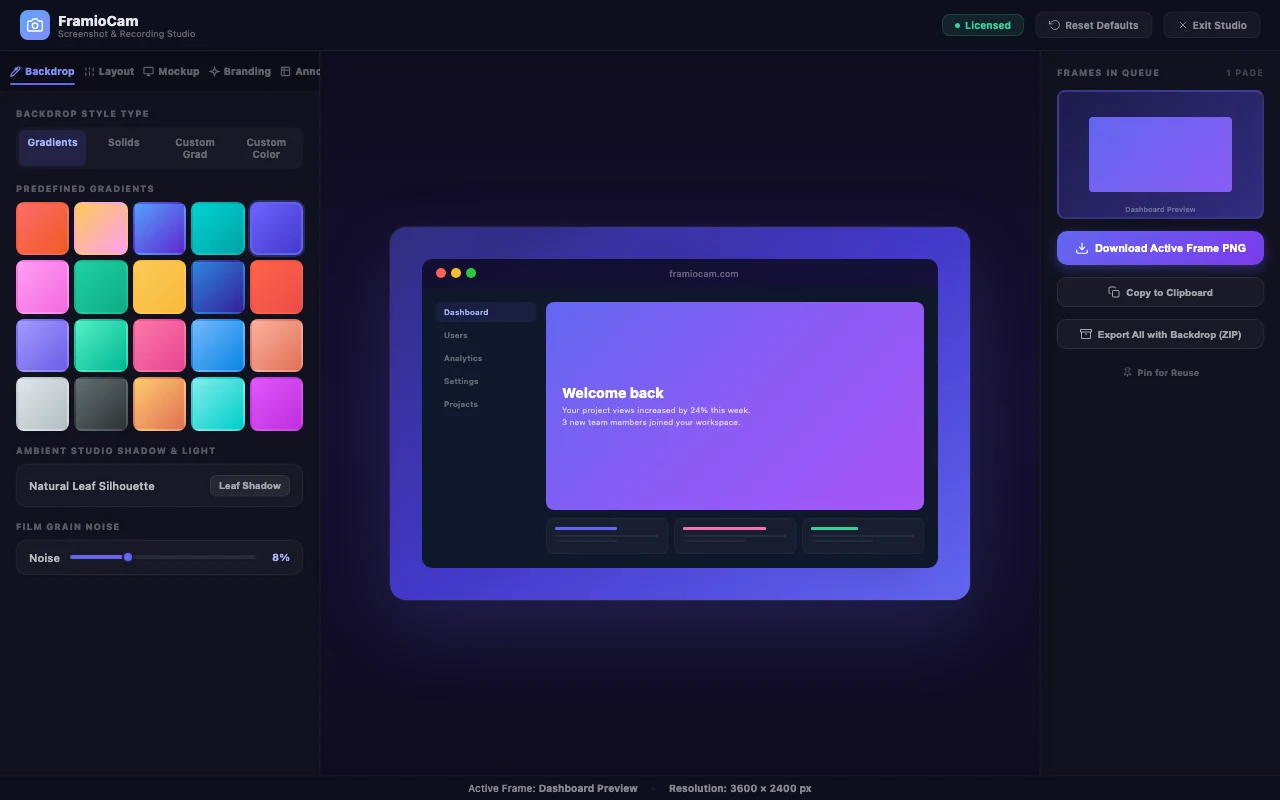
Awesome Screenshot’s editing is functional — crop, basic annotation, arrows and text. FramioCam’s screenshot studio goes considerably further: 20 curated gradients and 7 solid backdrops (or a custom gradient or hex color), pattern overlays, ambient refraction backgrounds, film grain to kill color banding, macOS/Windows 11 window-frame mockups with a mock SSL address bar, five elevation-shadow styles including a color-glow and neon-aura option, a 3D isometric perspective tilt, and a undo and redo history across a non-destructive annotation layer. None of that is aimed at replacing Awesome Screenshot’s quick-share convenience — it’s aimed at screenshots that are going somewhere more polished than a Slack thread: a case study, a changelog, an App Store listing, a landing page.
Video is where the products stop being comparable.
Awesome Screenshot records and lets you trim. FramioCam’s video side is a genuine editor — multi-lane timeline with filmstrip thumbnails, a 24-transition gallery with search and category tabs, zooms generated automatically from your actual click positions during recording, a cursor highlight ring, webcam compositing with its own border/shadow/shape controls, and text and annotation lanes with independent timing. If the recording needs actual editing rather than a trim to length, this is the biggest gap between the two tools.
Where Awesome Screenshot is genuinely the better tool
- Instant collaboration is the whole job. Native, one-click pushes into Slack, Asana, or Trello save real time if that’s your team’s daily loop.
- You want history and search across captures. Cloud storage means past screenshots are searchable and accessible from anywhere, not just the machine that made them.
- Team members share captures with people outside your org constantly. A hosted link is simpler to hand off than a downloaded file, especially at scale.
Who FramioCam is actually built for
Anyone whose screenshot or recording needs to look finished before it leaves the building — support teams attaching an annotated bug clip instead of six sentences of description, marketers building App Store or landing-page mockups, and product teams who want a 30-second walkthrough clip that’s actually edited, not just trimmed. If quick internal handoff is the whole requirement, Awesome Screenshot already does that well; FramioCam is for the step after, when the output needs to hold up somewhere more public.
FAQ
Is FramioCam free like Awesome Screenshot? Both have real free tiers. FramioCam’s first 50 screenshots require no account at all, and recording and editing video need none either — exporting a video is the step that asks for a free one. Awesome Screenshot’s free tier is also generous but includes local downloads alongside cloud-based storage and sharing.
Does FramioCam integrate with Slack or Asana like Awesome Screenshot does? No direct Slack or Asana integration. FramioCam exports a PNG, MP4, WebM, or GIF for the tool you already use; Pro and Teams can also save to your own Google Drive and create a Drive link.
Which is cheaper for a small team over time? FramioCam’s three-person Teams licence is a one-time purchase. See current team pricing. Awesome Screenshot’s paid tier is roughly $6/user/month, which is cheaper up front but becomes recurring cost that adds up over multiple years.
Can I edit video with Awesome Screenshot the way I can with FramioCam? Not to the same depth. Awesome Screenshot supports recording and basic trimming; FramioCam includes a full multi-lane timeline editor with transitions, auto-zoom, and webcam compositing.
See the full breakdown of how FramioCam compares to Awesome Screenshot, Loom, Scribe and CleanShot X, or add FramioCam to Chrome and try the first 50 screenshots free.