01 / Screenshot capture
Capture the whole picture.
Save a visible area, a full scrolling page, a selected region, or a queue of pages. Open the result in Studio when it needs a little more context.
Explore screenshot captureFramioCam for Chrome
One screenshot and screen recording Chrome extension, with a Studio for everything that happens next. Capture a detail, explain an idea, and share a polished result.
01 / Screenshot capture
Save a visible area, a full scrolling page, a selected region, or a queue of pages. Open the result in Studio when it needs a little more context.
Explore screenshot capture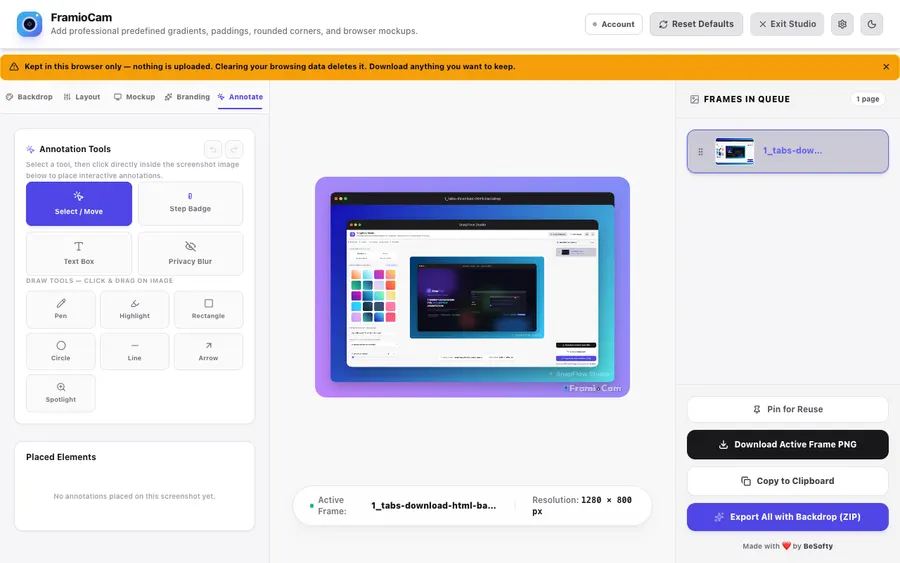
02 / Screenshot editor
Choose a Studio backdrop, add a browser mockup, crop the canvas, and annotate the details. Turn a capture into an image that is ready to share.
Explore screenshot editor03 / Screen recording
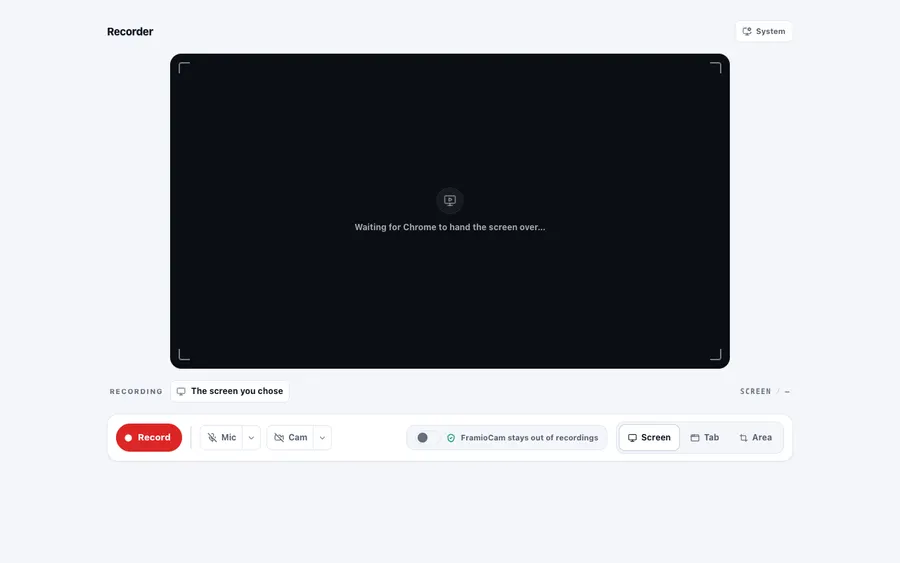
Record a browser tab, a window, your whole screen, or a region. Add your microphone and camera, pause when you need to, and save the recording locally.
Explore screen recording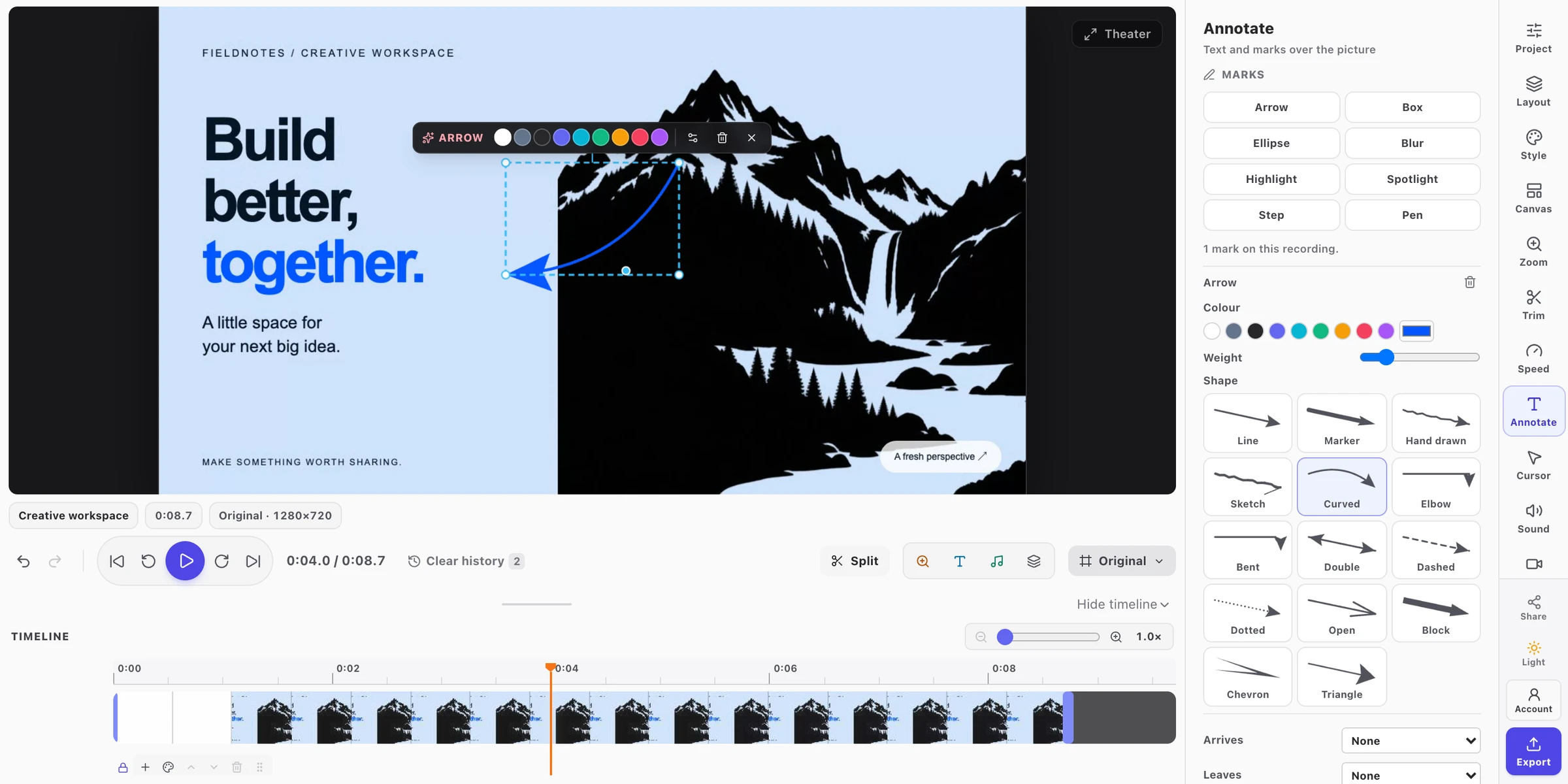
04 / Video editor
Trim and split clips, add zooms, and explain with text, annotations, and audio. Export MP4, WebM, GIF, or a PNG frame when your browser supports it.
Explore video editor
05 / Cloud sync & sharing
Pro and Teams let you save screenshots and recordings to Google Drive, copy a share link, and continue editing a project on another device.
Explore cloud sync & sharingYour creative workflow starts here
From a quick screenshot to a polished walkthrough. Capture, edit, and share with FramioCam.
Free to start One-time paid plans
We use .